
Connect your app to a database
Many apps need a database to store users, orders or posts. This page shows you how to add a PostgreSQL database on your server and connect your app to it.
Install PostgreSQL
On the same server as your app
Find the connection details
The internal name and the login are in the dashboard
Add them to your app
As environment variables
Redeploy
Your app starts with the new settings
Step 1: Install PostgreSQL on the same server
PostgreSQL is a popular database, available as a one-click template.
- Open Open Source Apps in the sidebar
- Search for "PostgreSQL" and click the template
- Under Server, select the same server your app runs on
- Give it an App Name, for example
my-db - Leave the rest as it is. The Database Password is generated for you
- Click Deploy PostgreSQL
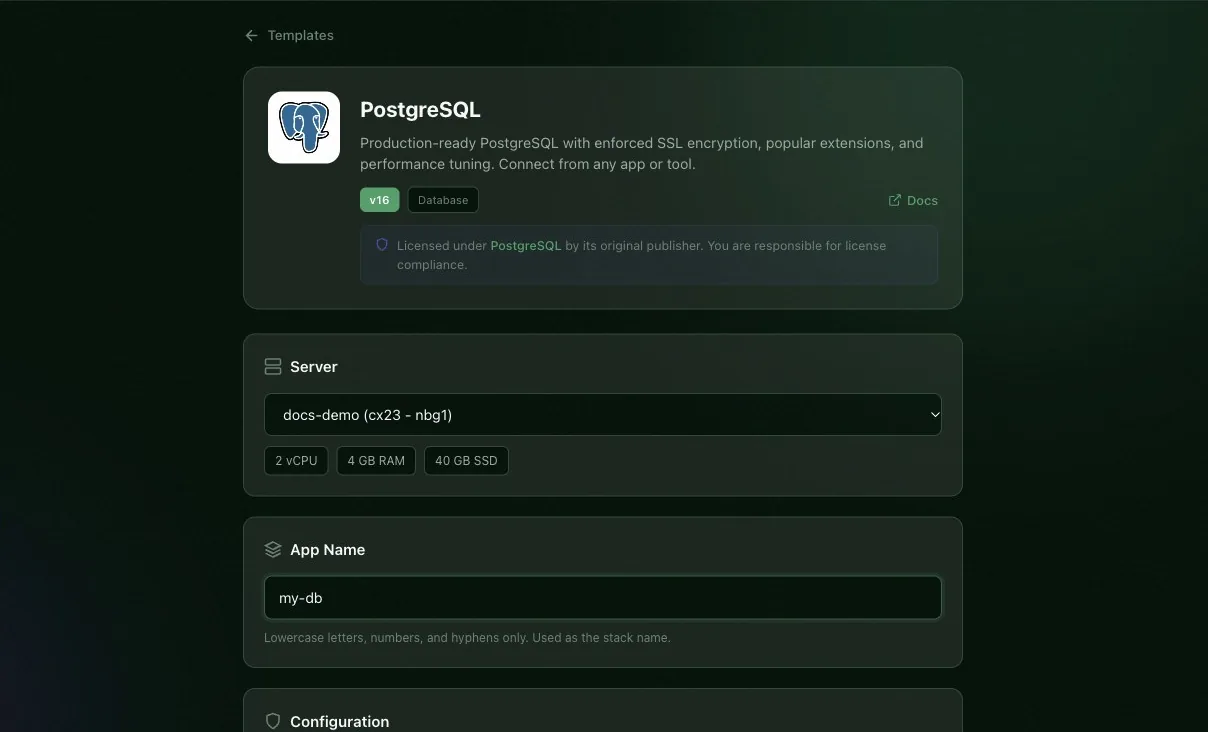 The PostgreSQL template: pick your server and give the database a name.
Step 2: Find the connection details
Open the database from My Apps. Under Connect to your database, click the Internal (same server) tab. It shows everything your app needs:
- Connection string: one line with all the details, ready to copy
- Host: the internal name other apps on the same server use, for example
my-db-postgres - Database, User and Password (click Reveal to see the password)
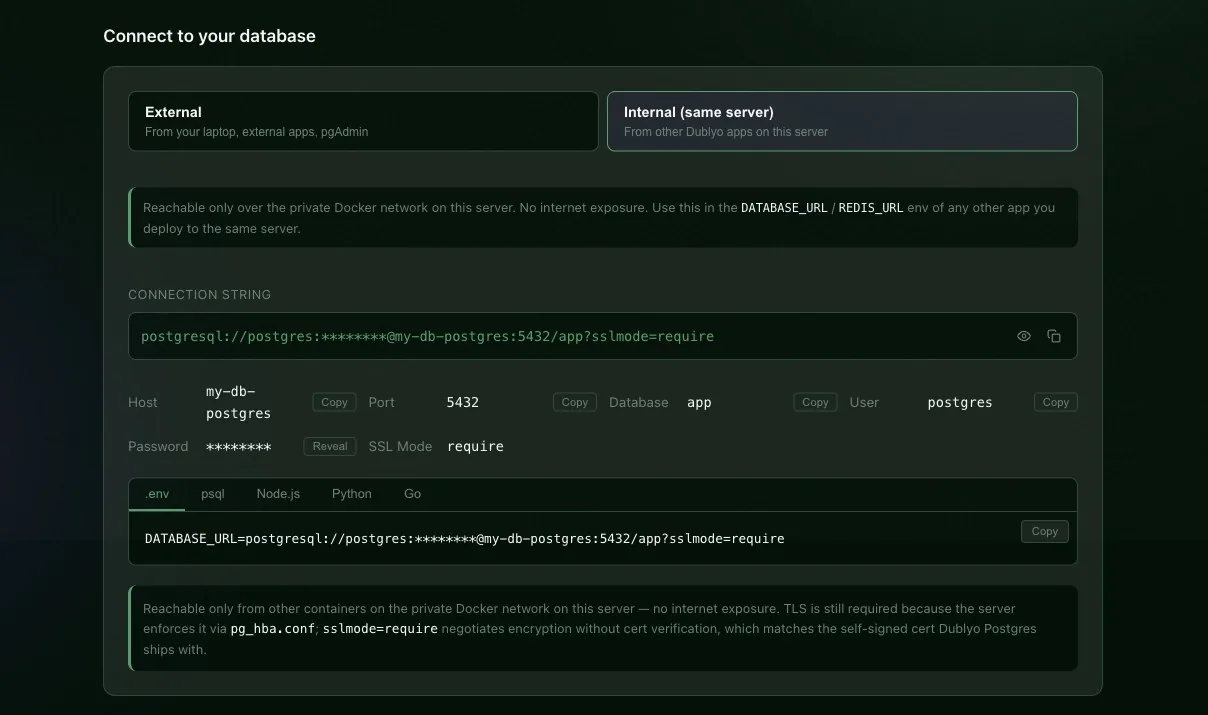 The Internal tab. The small tabs at the bottom give a ready line for .env, psql, Node.js, Python and Go.
PostgreSQL uses port 5432 inside the server. A port is the "door number" a program listens on.
Step 3: Add the details to your app
Your app reads its database settings from environment variables: settings and secrets your app reads when it runs. They are stored encrypted.
Open your app in the dashboard and add the variable your app expects. Most apps use one called DATABASE_URL. It puts all the details in one line:
DATABASE_URL=postgresql://USER:PASSWORD@INTERNAL-NAME:5432/DATABASE-NAME
Replace the words in capitals with your own values from Step 2. If your password has special characters, they may need to be encoded.
Step 4: Redeploy
Redeploy your app so it starts with the new variables. Expect a brief interruption while the new version replaces the old one.
If the app shows "keeps stopping right after it starts", open the Logs tab. Usually a value is wrong or missing. See What this error means.
Connect from your own computer
Sometimes you want to look at your data with a database tool on your computer. For this, your database has its own address ending in .dublyo.co. You find it in the dashboard. Use it with the same user, password and database name.
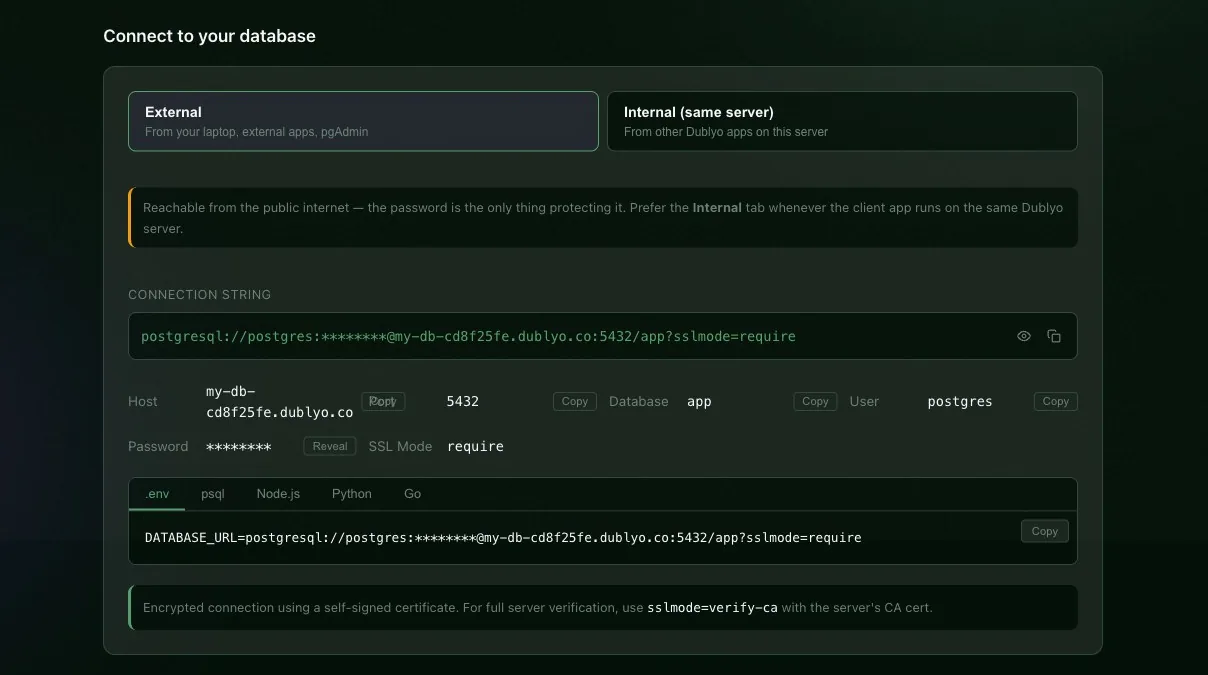 The External tab: the address for tools on your own computer.
- The database port is open to the internet for 24 hours after the database is created.
- After that it locks automatically.
- You can reopen it for 1, 6 or 24 hours from the server page.
Backups
Dublyo does not make automatic backups of servers or apps. For PostgreSQL there is an optional PostgreSQL Cloud Backup template. It backs your database up to your own S3 storage. See Backups & Migration.
Need Help?
Can't find what you're looking for? Check the full documentation or reach out.