
MCP servers
An MCP connection is a way to let an AI assistant, such as ChatGPT or Claude, work with your Dublyo servers. You set it up on one of your servers, then give its address and key to your AI.
Open MCP Servers in the dashboard. You need a running server first.
Create a connection
Click + New Connection. The form has three steps:
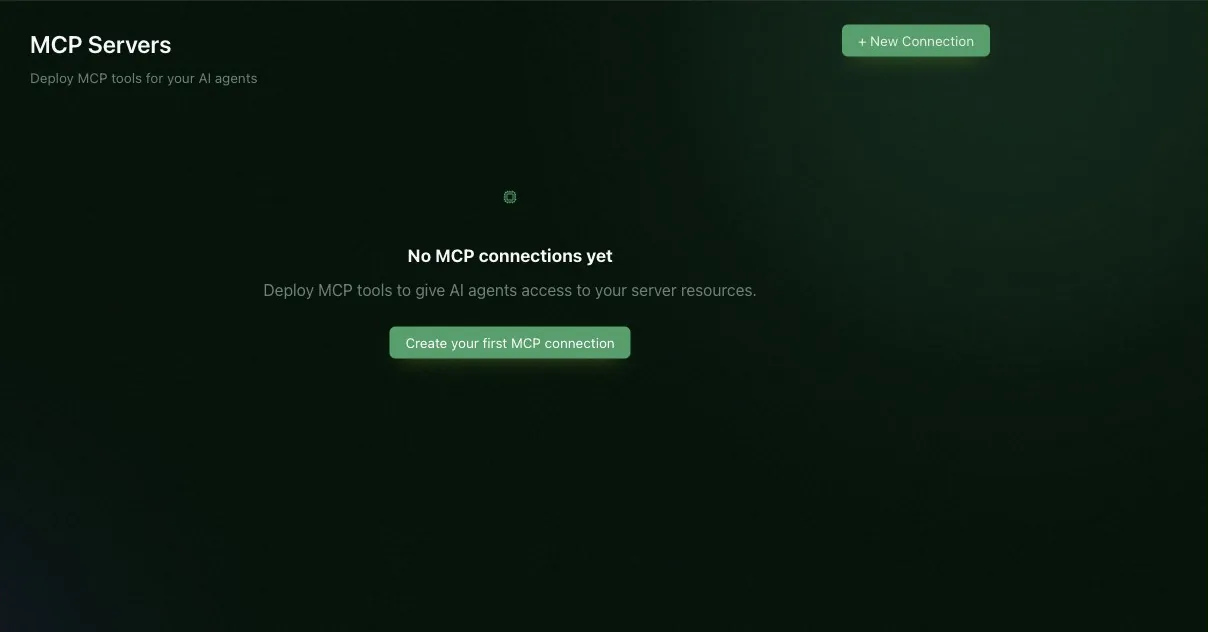 The MCP Servers page.
- Server: pick the server that should host the connection.
- Profile: pick an MCP profile. Each card shows what it does and how many tools it has.
- Configure: give it a Connection Name and fill in any fields the profile asks for. Fields marked * are required. Click Create Connection.
For a profile that works with your own files, you upload .txt, .md and .mdx files right after creating it.
Connect your AI
When the connection is ready, you see your API Key.
Under Connect to your AI you get ready-made settings to copy:
- ChatGPT: go to Settings → Developer Mode → Add MCP Server and paste the URL.
- Claude Desktop: copy the JSON into the Claude config file shown, then restart Claude.
- Claude Code: run
/mcp addor paste the URL.
Click Done, or Add Another to create one more.
Manage and remove
Your connections are listed by server. Each one shows its name, address and status, the number of Requests, Errors and Sessions, and P95: 95 out of 100 requests finish within that time.
- ChatGPT URL, Claude URL, Desktop Config: copy the settings again. Replace
YOUR_API_KEYwith your key. - Regen Key: makes a new key. The old key keeps working for 5 more minutes. Save the new one, as it is shown only once.
- Delete: removes the connection and its address.
Need Help?
Can't find what you're looking for? Check the full documentation or reach out.